Repair Order Settings
The Repair Order Settings page allows you to customize your repair workflow by defining and organizing status stages.
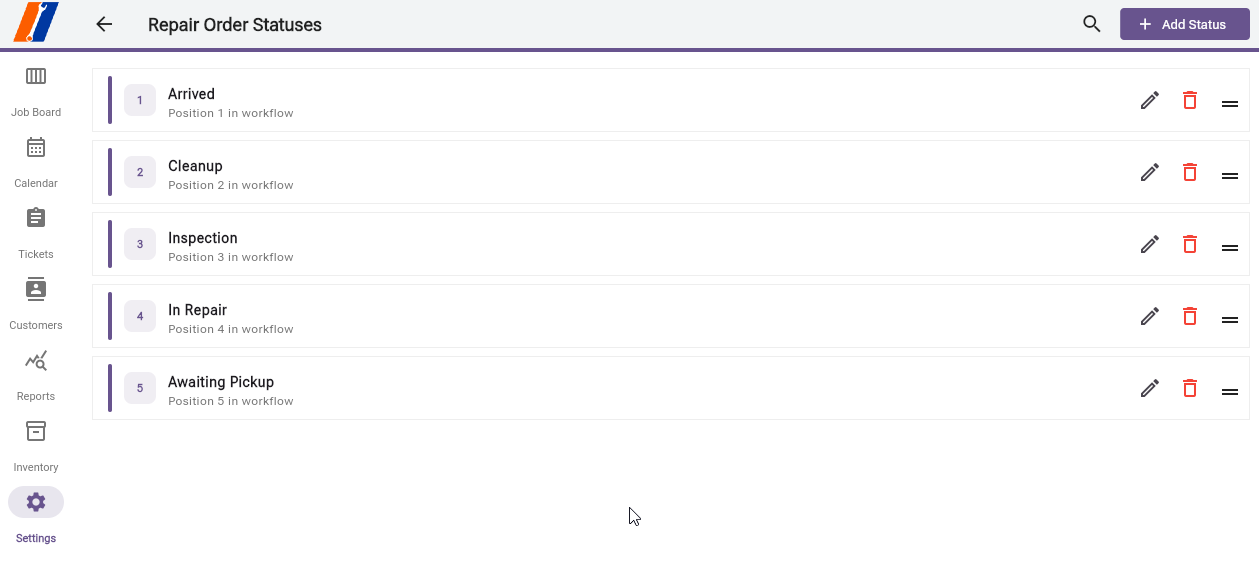
Overview
Configure your repair order workflow with:
Custom status definitions
Drag-and-drop workflow sequencing
Visual workflow indicators
Protection against data loss
Workflow Design
Sequential status progression
Numbered position badges
Reorderable list interface
Visual drag indicators
Reorderable Workflow
Drag and Drop
Click and hold drag handle
Visual feedback during drag
Elevated card animation
Automatic position updates
Instant database synchronization
How to Use
Adding a New Status
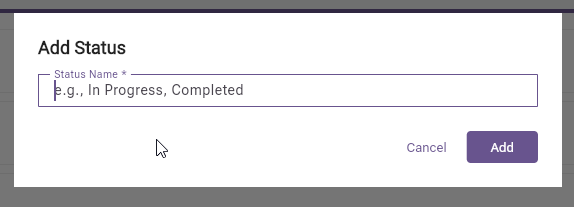
Click Add Status button in the app bar.
Enter the status name:
Use clear, descriptive names.
Consider workflow progression.
Keep names concise.
Click Add to create the status.
New status appears at the end of the workflow.
Editing Status Names
Click the edit icon on any status card.
Update the status name in the dialog.
Click Update to save changes.
Name updates apply to all repair orders.
Reordering Workflow
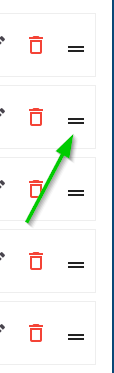
Locate the status to move.
Click and hold the drag handle (right side).
Drag to the desired position.
Release to drop in place.
Positions update automatically.
Deleting a Status
Click the delete icon (red trash can).
Confirm deletion in the dialog.
System checks for usage:
If unused: Status is deleted.
If in use: Warning shows count of affected tickets.
Protection prevents data loss.
Managing the Workflow
Workflow Positions
Position 1: Initial status for new repair orders.
Middle positions: Work in progress stages.
Final position: Completion status.
Best Practices
Status Naming
Clear and Specific
✅ “Waiting for Parts”
❌ “Waiting”
✅ “Customer Approval Needed”
❌ “Pending”
Action-Oriented
Focus on the current state.
Indicate required action.
Avoid ambiguous terms.
Related Documentation
Services Settings - Configure service templates.
Inspections Settings - Set up inspections.
Company Settings - Business configuration.
Employee Settings - Team management.
Settings Overview - Settings introduction.