Company Settings
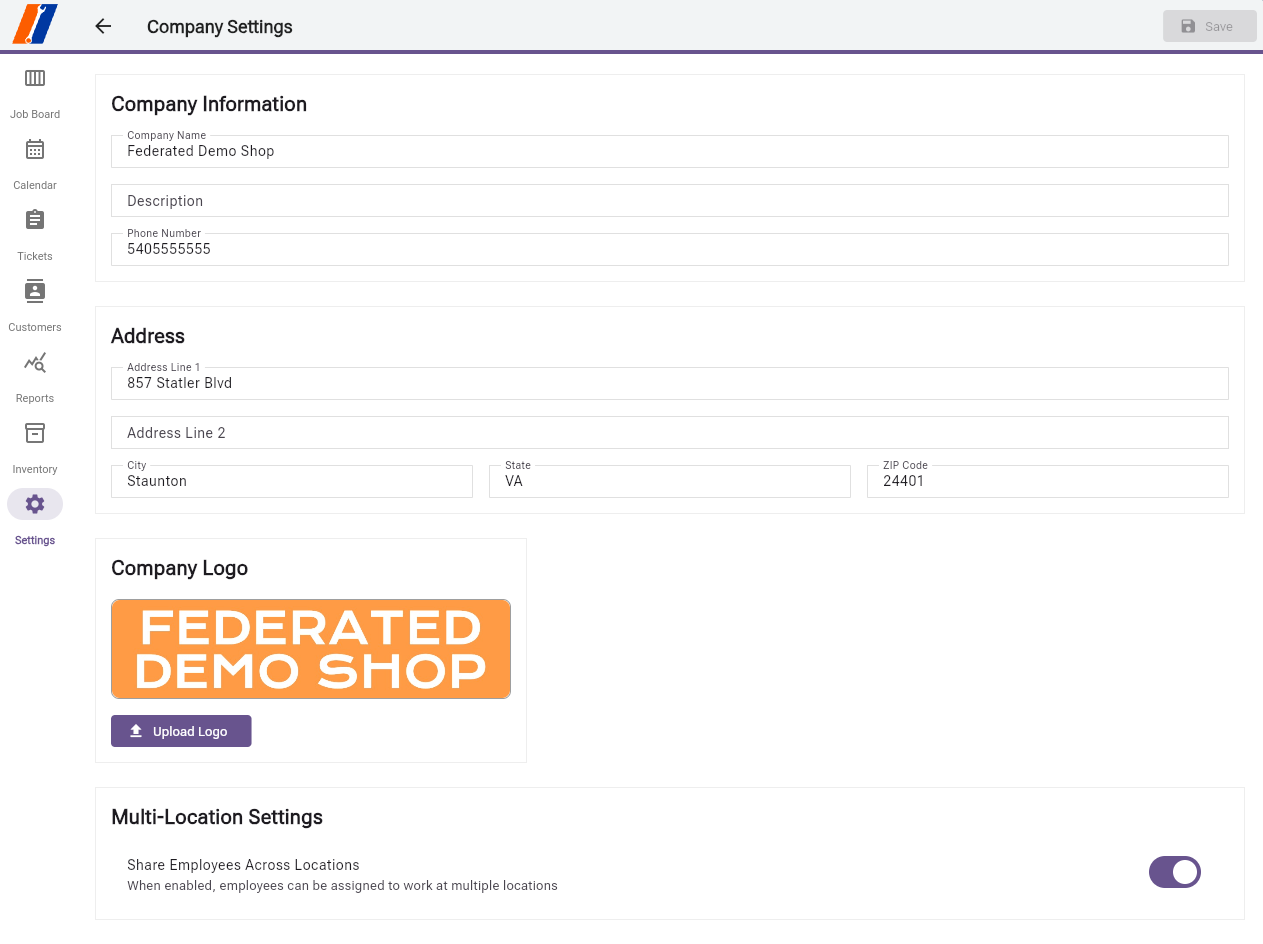
The Company Settings page allows you to configure your business information and branding within Service Professional.
Overview
Access Company Settings from the main Settings menu to manage:
Business identification and contact information
Company logo and branding
Location and operational details
Company Information
Business Details
Company name
Business registration number
Tax identification number
Primary contact information
Contact Information
Phone numbers (primary, secondary, fax)
Email addresses
Website URL
Social media links
Company Logo
Logo Management
Upload company logo for use throughout the system
Appears on invoices, reports, and customer communications
Supports common image formats (PNG, JPG, SVG, WebP)
Maximum file size: 5MB
Image Cropping Tool
Built-in image cropper for perfect logo formatting
Zoom controls for precise adjustments
Visual guides for alignment
Aspect ratio constraints for consistent display
How to Use
Editing Company Information
Navigate to Settings → Company Settings
Click on any field to edit
Make your changes
Click the Save button to apply changes
Uploading a Company Logo
Click the Upload Logo button
Select an image file from your computer
Use the cropping tool to adjust:
Drag to reposition the image
Use zoom slider for sizing
Click and drag corners to adjust crop area
Click Apply to set the logo
Save your changes
Managing Unsaved Changes
When you have unsaved changes:
The Save button becomes highlighted
A warning appears if you try to navigate away
Choose from the dialog:
Save Changes: Save and continue
Discard: Leave without saving
Cancel: Stay on the page
Best Practices
Logo Guidelines
Use a high-resolution image (minimum 500x500 pixels)
Choose a logo with a transparent background for best results
Consider how the logo appears at different sizes
Test logo visibility on both light and dark backgrounds
Common Issues
Logo Not Displaying
Verify file size is under 5MB
Check image format is supported
Ensure proper internet connection for upload
Clear browser cache if logo appears outdated
Image Cropper Issues
Use a modern browser (Chrome, Firefox, Safari)
Disable browser extensions that may interfere
Try uploading a different image format
Reduce image size before uploading if very large
Related Settings
Company Settings - Configure business information.
Services Settings - Manage service offerings.
Repair Order Settings - Set workflow permissions.